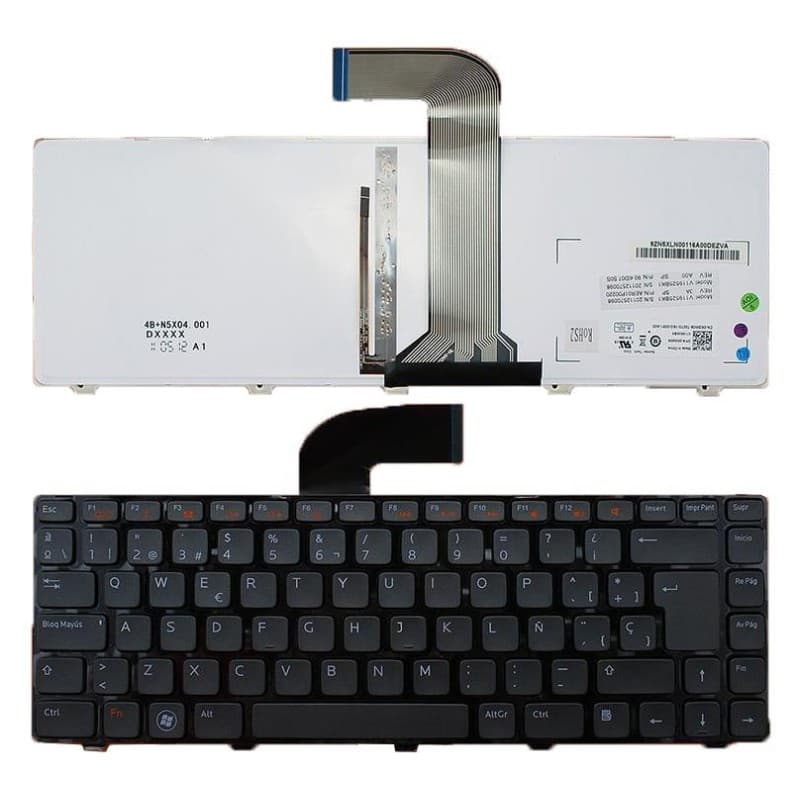
Backlit Keyboard for Dell Inspiron N4110 Vostro 3550 XPS L502 Laptop
Marca
Portátil Móvil
Compatibilidade
Dell Inspiron N4110, N5050, N5040, Vostro 3550, XPS L502, Latitude E7440, Studio 1735, Vostro 1400 e mais
Tipo
Teclado Retroiluminado
Condição
Novo / Selado
High-quality backlit keyboard for Dell Inspiron and Vostro laptops. Brand new, sealed product ready for immediate installation across multiple compatible Dell models.
Key Features
- LED Backlight: Comfortable typing in low-light environments
- New & Sealed: Never used, zero operating cycles
- Wide Compatibility: Supports 20+ different Dell laptop models
- Durable Construction: Original replacement keyboard with OEM quality
- Easy Installation: Perfect fit for your Dell laptop
Compatible With
- Dell Inspiron 14R N4110
- Dell Inspiron 15 N5050
- Dell Inspiron 15 N5040
- Dell Vostro 3550
- Dell XPS L502
- Dell Latitude E7440 E7420
- Dell Studio 1735 1555
- Dell Vostro 1400 3558
Why RM TechStore?
- 12-month warranty
- Fast shipping to Portugal & Europe
- Physical store in Lisbon
How to replace the keyboard
Some keyboards lift out from the top (clips); others need the laptop opened from underneath. Check your model's method — if unsure, we'll swap it in store.
Tools
- 🔧 Small Phillips screwdriver
- 🔧 Plastic spudger
- 🔧 Tweezers
Step by step
- 1
Shut down, unplug the charger and (if external) remove the battery.
- 2
Top-mount keyboard: release the clips along the top edge with the spudger and lift it out. Bottom-mount: open the bottom cover and remove the screws marked with a keyboard icon.
- 3
Tilt the keyboard and unplug the flat cable (lift the ZIF connector flap before pulling).
- 4
Connect the new keyboard's flat cable into the connector and close the flap.
- 5
Seat the new keyboard into the clips/screws and reassemble.
- 6
Power on and test every key, including Fn and the arrows.
Good to know: Flat cables tear easily — never pull the cable with the flap closed. Confirm the layout (PT/US) and backlight before buying.
Rather we fit it? We do it for you in store in Entrecampos, Lisbon.
Related products
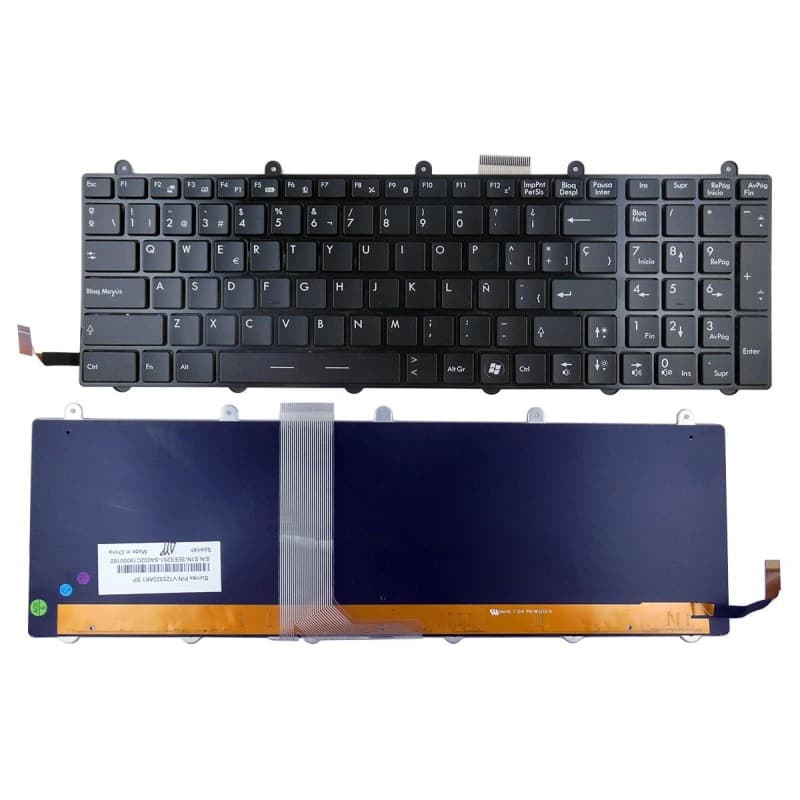
MSI Steelseries GT60 GT70 GX60 GX70 Backlit Gaming Keyboard
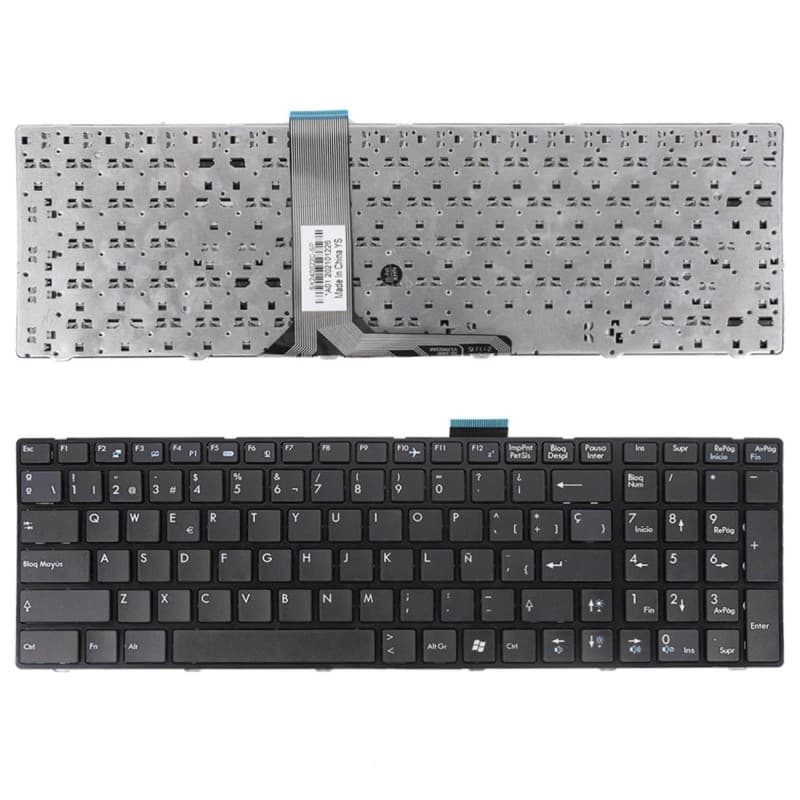
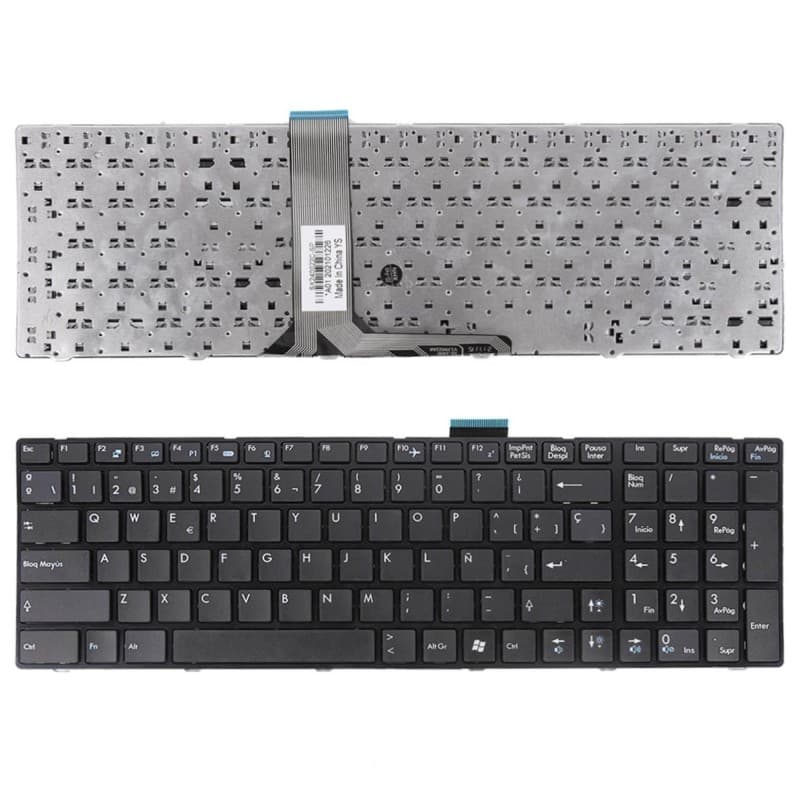
Replacement Keyboard for MSI GT660 GT685 Laptops
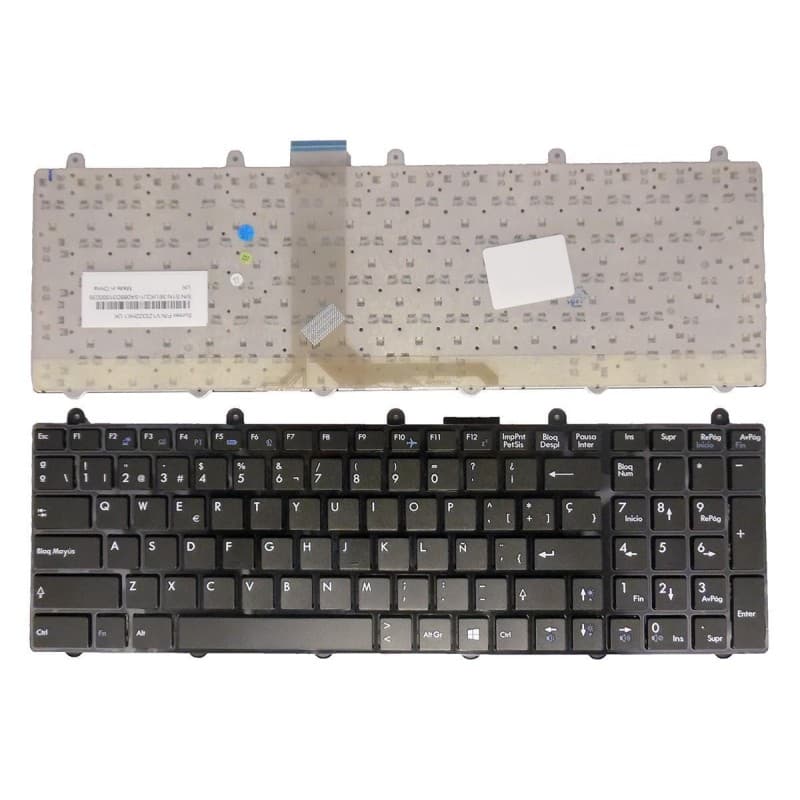
Keyboard for MSI GT60 GT70 GX60 GX70 Laptop - New Sealed
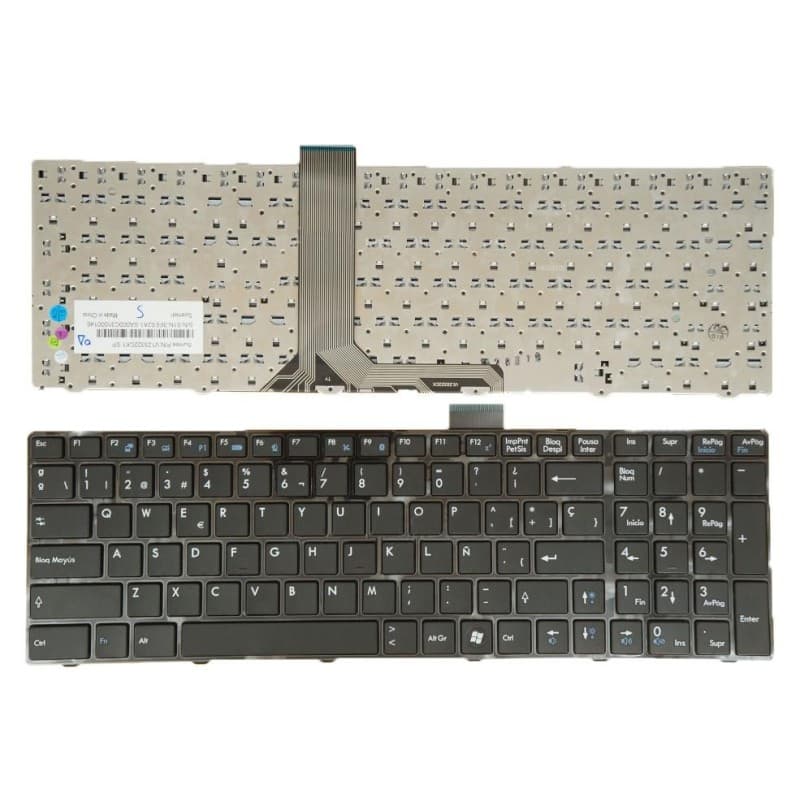
MSI GE60 GE70 Laptop Keyboard - New Sealed
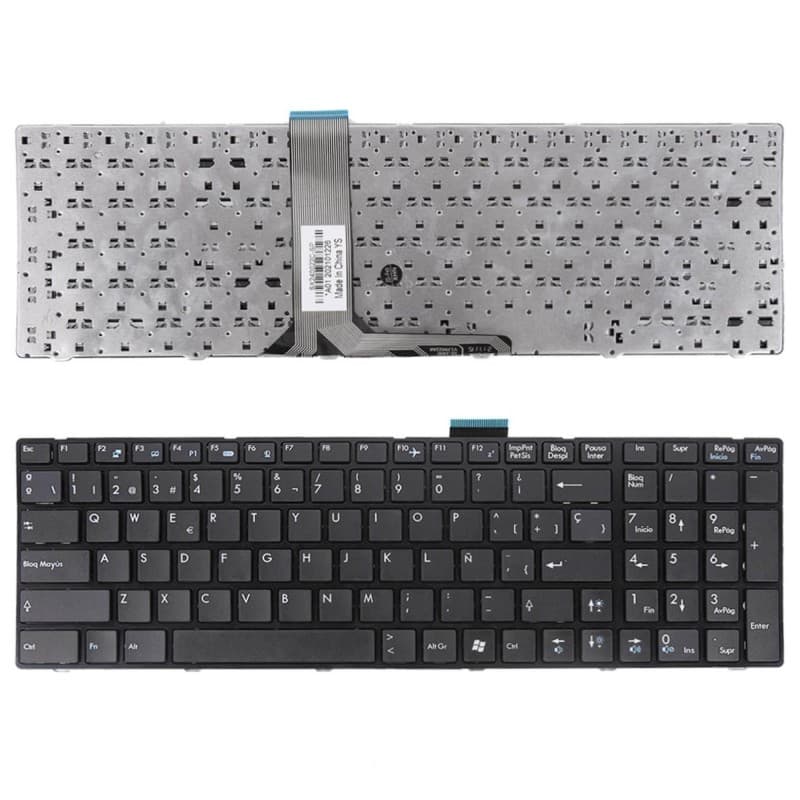
MSI GT660 GT660R GT663 GT685 GT685R Laptop Keyboard Black - New