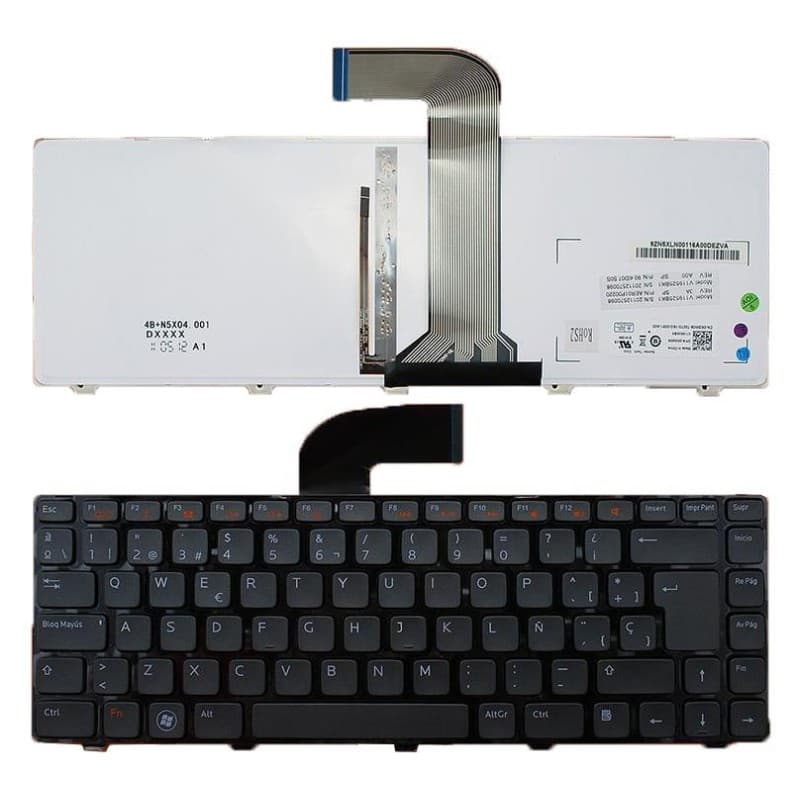
Clavier Rétroéclairé pour Ordinateur Portable Dell Inspiron N4110 Vostro 3550 XPS L502
Marca
Portátil Móvil
Compatibilidade
Dell Inspiron N4110, N5050, N5040, Vostro 3550, XPS L502, Latitude E7440, Studio 1735, Vostro 1400 e mais
Tipo
Teclado Retroiluminado
Condição
Novo / Selado
Clavier rétroéclairé de haute qualité pour ordinateurs portables Dell Inspiron et Vostro. Produit neuf et scellé, prêt pour installation immédiate sur plusieurs modèles Dell compatibles.
Caractéristiques Principales
- Rétroéclairage LED: Frappe confortable dans les environnements peu éclairés
- Neuf et Scellé: Jamais utilisé, zéro cycle de fonctionnement
- Compatibilité Étendue: Support pour plus de 20 modèles Dell différents
- Construction Robuste: Clavier de remplacement d'origine avec qualité OEM
- Installation Facile: S'adapte parfaitement à votre ordinateur portable Dell
Compatible Avec
- Dell Inspiron 14R N4110
- Dell Inspiron 15 N5050
- Dell Inspiron 15 N5040
- Dell Vostro 3550
- Dell XPS L502
- Dell Latitude E7440 E7420
- Dell Studio 1735 1555
- Dell Vostro 1400 3558
Pourquoi RM TechStore?
- Garantie de 12 mois
- Livraison rapide au Portugal et en Europe
- Boutique physique à Lisbonne
How to replace the keyboard
Some keyboards lift out from the top (clips); others need the laptop opened from underneath. Check your model's method — if unsure, we'll swap it in store.
Tools
- 🔧 Small Phillips screwdriver
- 🔧 Plastic spudger
- 🔧 Tweezers
Step by step
- 1
Shut down, unplug the charger and (if external) remove the battery.
- 2
Top-mount keyboard: release the clips along the top edge with the spudger and lift it out. Bottom-mount: open the bottom cover and remove the screws marked with a keyboard icon.
- 3
Tilt the keyboard and unplug the flat cable (lift the ZIF connector flap before pulling).
- 4
Connect the new keyboard's flat cable into the connector and close the flap.
- 5
Seat the new keyboard into the clips/screws and reassemble.
- 6
Power on and test every key, including Fn and the arrows.
Good to know: Flat cables tear easily — never pull the cable with the flap closed. Confirm the layout (PT/US) and backlight before buying.
Rather we fit it? We do it for you in store in Entrecampos, Lisbon.
Produits associés
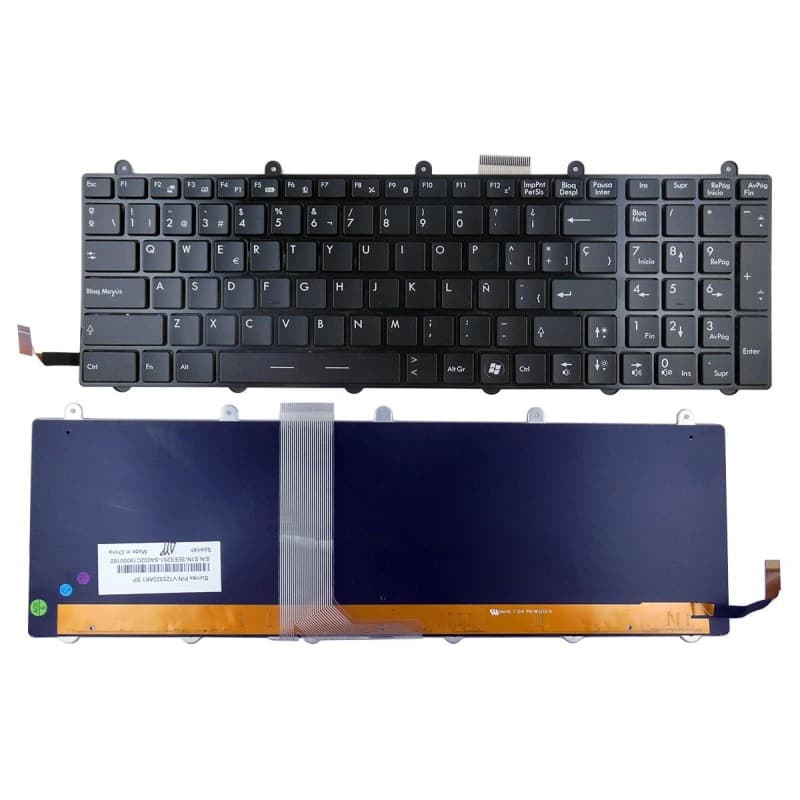
Clavier Gaming MSI Steelseries GT60 GT70 GX60 GX70 Rétroéclairé
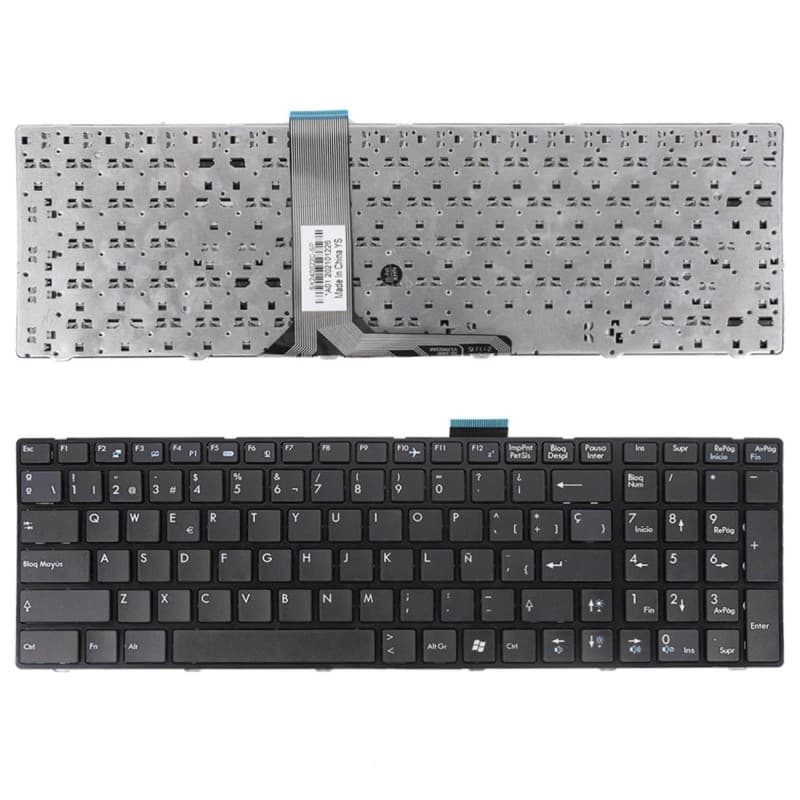
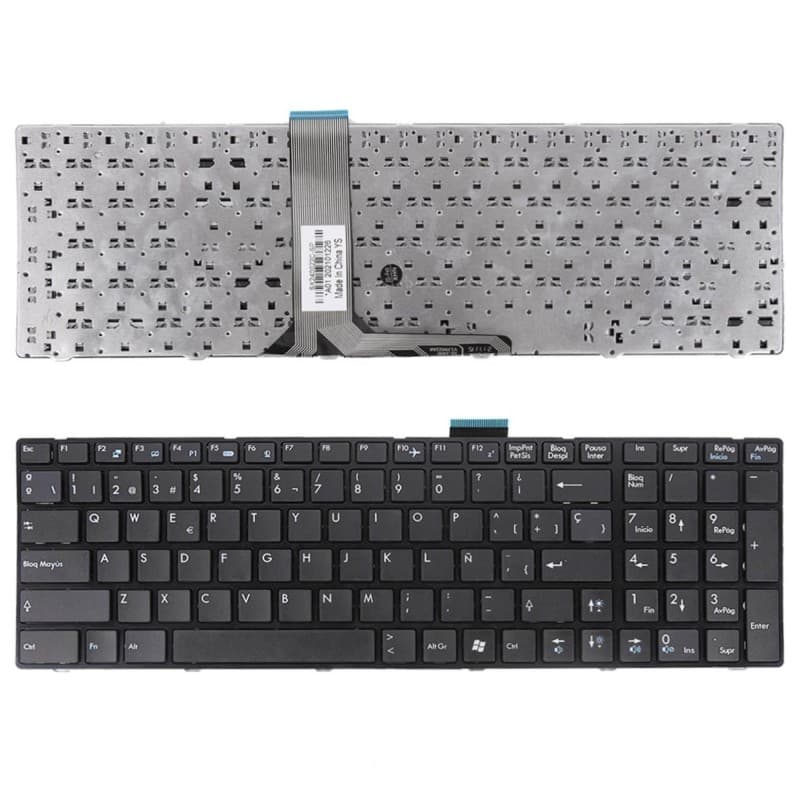
Clavier pour Portable MSI GT660 GT685 Neuf
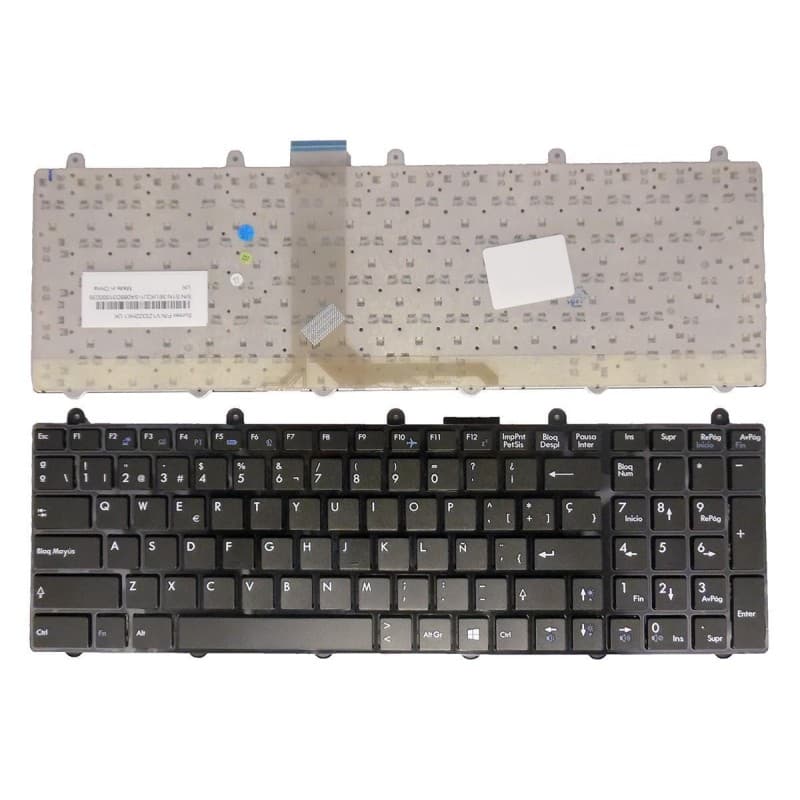
Clavier pour Ordinateur Portable MSI GT60 GT70 GX60 GX70 - Neuf Scellé
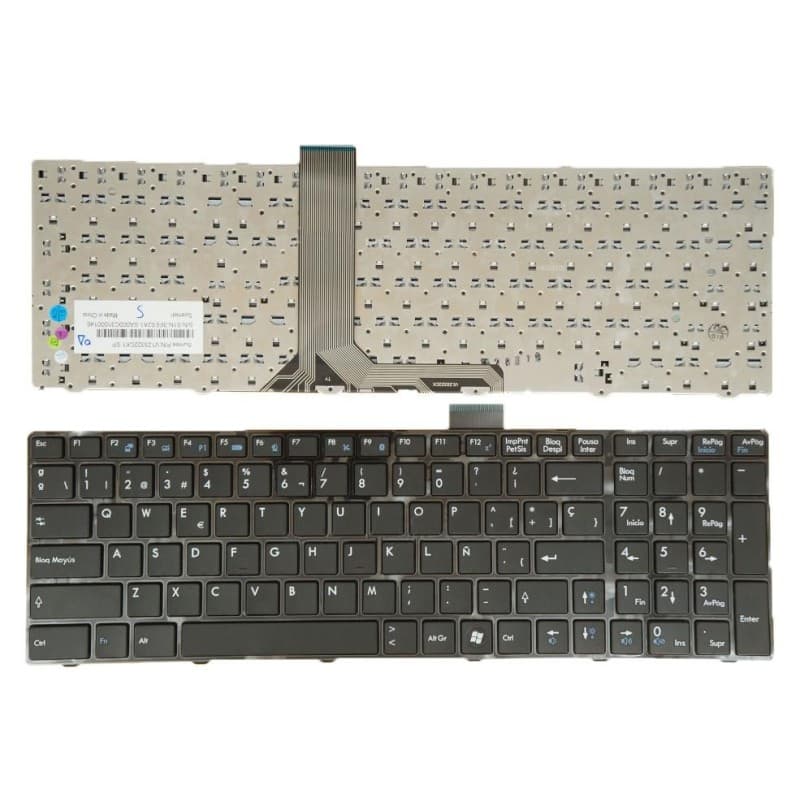
Clavier pour Ordinateur Portable MSI GE60 GE70 - Neuf Scellé
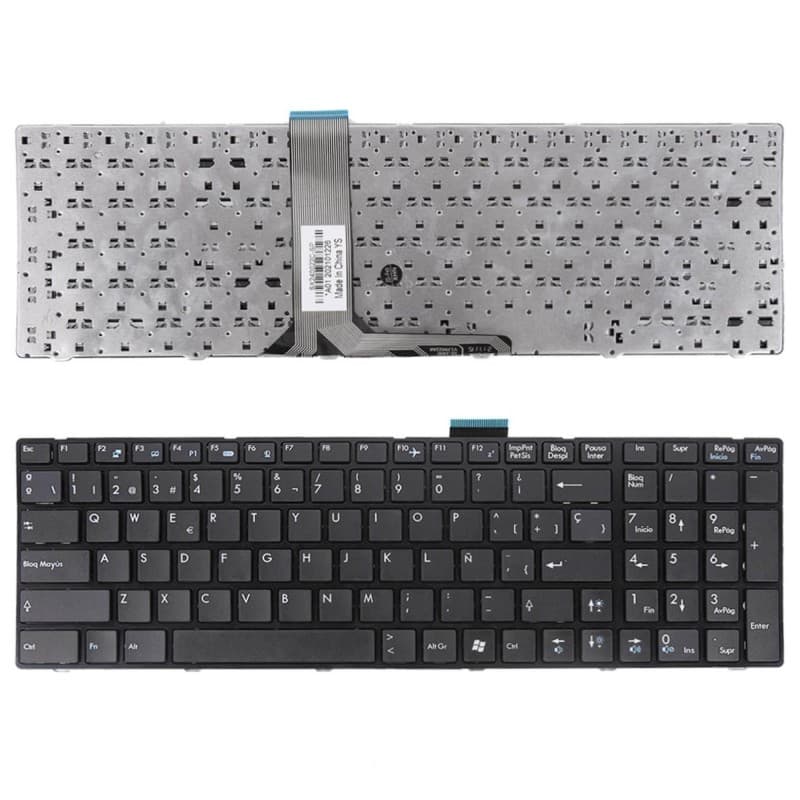
Clavier pour Ordinateur Portable MSI GT660 GT660R GT663 GT685 GT685R Noir - Neuf