
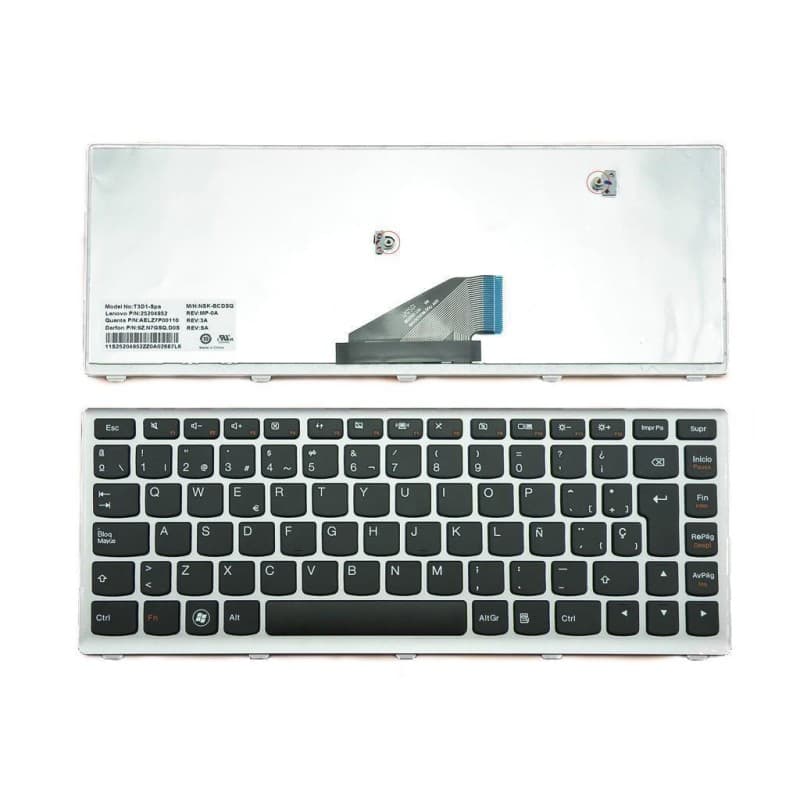
Teclado para Lenovo IdeaPad U310 Series - Nuevo Sellado
Condição
Novo e Selado - 0 ciclos
Tipo de Produto
Teclado para Portátil
Compatibilidade Alargada
Lenovo IdeaPad 3, B40, ThinkPad Edge, IdeaPad 5, IdeaPad 320, IdeaPad 100
Garantia
12 meses
Teclado original de reemplazo para Lenovo IdeaPad U310 Series Ultrabook. Producto nuevo, sellado y en perfectas condiciones. Compatible con múltiples modelos Lenovo, ThinkPad y otros portátiles en toda Europa.
Características Principales
- Nuevo y Sellado: Nunca utilizado, 0 ciclos de funcionamiento
- Compatibilidad Amplia: IdeaPad U310, B40, IdeaPad 3, ThinkPad Edge E430
- Calidad Original: Pieza de reemplazo certificada
- Precio Competitivo: €29,25 con envío rápido
- Instalación Fácil: Encaje directo en tu portátil
Compatible Con
- Lenovo IdeaPad U310 Series Ultrabook
- Lenovo IdeaPad 3 14ADA05 y 14ITL6
- Lenovo ThinkPad Edge E430
- Lenovo IdeaPad 5 15IIL05
- Lenovo IdeaPad 320-15ABR y 320-15IAP
- Lenovo IdeaPad 100-14IBY
- Lenovo ThinkPad Yoga 15
- Modelos Dell, HP, Asus y Fujitsu
¿Por Qué RM TechStore?
- Garantía até 3 anos (novos) / 18 meses (recondicionados) en todas las piezas
- Envío 24h a Portugal y Unión Europea
- Tienda física en Lisboa, Portugal
How to replace the keyboard
Some keyboards lift out from the top (clips); others need the laptop opened from underneath. Check your model's method — if unsure, we'll swap it in store.
Tools
- 🔧 Small Phillips screwdriver
- 🔧 Plastic spudger
- 🔧 Tweezers
Step by step
- 1
Shut down, unplug the charger and (if external) remove the battery.
- 2
Top-mount keyboard: release the clips along the top edge with the spudger and lift it out. Bottom-mount: open the bottom cover and remove the screws marked with a keyboard icon.
- 3
Tilt the keyboard and unplug the flat cable (lift the ZIF connector flap before pulling).
- 4
Connect the new keyboard's flat cable into the connector and close the flap.
- 5
Seat the new keyboard into the clips/screws and reassemble.
- 6
Power on and test every key, including Fn and the arrows.
Good to know: Flat cables tear easily — never pull the cable with the flap closed. Confirm the layout (PT/US) and backlight before buying.
Rather we fit it? We do it for you in store in Entrecampos, Lisbon.
Productos relacionados

Teclado Completo para Portátil Lenovo Yoga 2 13" Negro con Carcasa Blanca

Teclado Lenovo ThinkPad T400S T410 T420 X220 45N2083 - Nuevo Sellado

Teclado Lenovo G40-70 G40-80 G40-30 852-42537-B2A Original

Teclado Lenovo ThinkPad Yoga 15 PK1316V2A22 NSK-Z70BC - Nuevo

Teclado para Portátil Lenovo ThinkPad Edge E430 04W2520
